
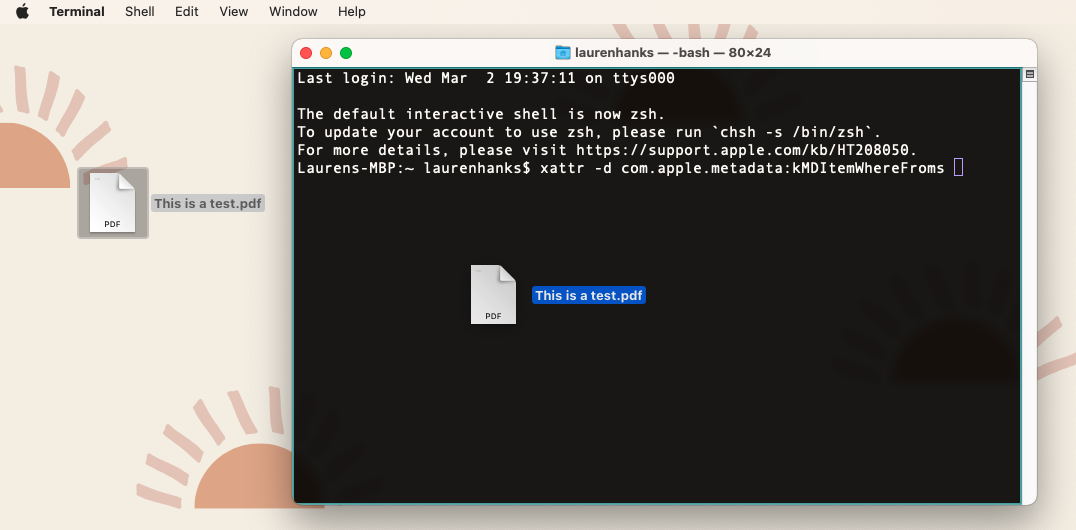
This post is a bit random, but the other day I learned how to update the uneditable file properties on a Mac and wanted to share here so I would remember for later. (This is truly the main reason I blog, haha!) I noticed that when I downloaded a file from GoogleDocs and saved it as a .pdf, the “where from” section in File Properties gave this long, ugly docs.google.com URL:
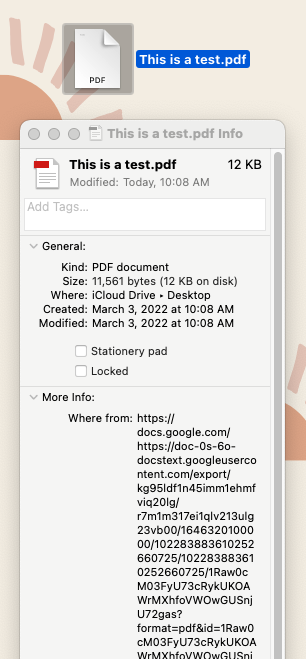
You can edit most of the file properties on a Mac simply by right-clicking the file, going to “Get Info” and then scrolling down to the Name & Extension or Sharing & Permissions sections. You can also open the file in a .pdf viewer (I love PDF Expert) and then going to File > Properties. Even in that interface, however, I didn’t have the option to change or remove the “Where From” section:
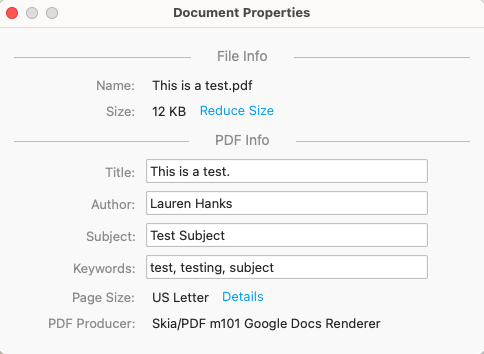
This obviously isn’t the end of the world, but not exactly ideal either when sharing professional documents with colleagues or institutions. I used trusty ol’ Google to find this article on viewing and removing extended file attributes, which said that I could make this change through my terminal. Perfect! I opened terminal and added the following command:
xattr -d com.apple.metadata:kMDItemWhereFroms Next, I dragged & dropped my file into terminal to add in the file’s specific location on my mac:
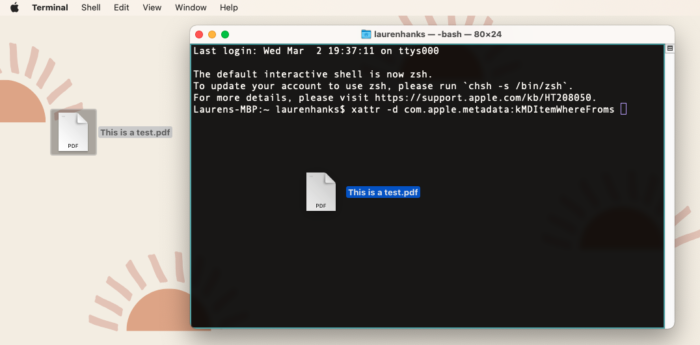
Once doing so, it completed the following string in terminal:
xattr -d com.apple.metadata:kMDItemWhereFroms /Users/laurenhanks/Desktop/This\ is\ a\ test.pdf I then clicked “enter” and that’s it. Now when I click “Get Info” on my file, this is what I see:
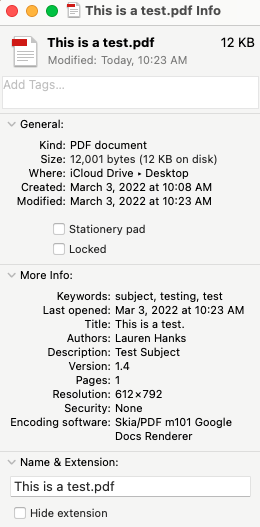
Pretty cool, right?
Haha! It worked! After adding a space to the line of code… Thank you so much! I tried homebrewing, but this was so quick and easy.
It used to work before but suddenly it stopped working. Are you aware of any new changes?
Mahalo! That worked like a charm! Just needed to be sure to add a space between the command and the file name, as Jeremy mentioned above.
You just need to right click on the URL and choose the “Remove the URLs”, no extra packages is needed! Thats “-d” in the command simply means delete.
Got this working by changing kMDItemWhereFroms to kMDItemWhereFrom (without the trailing ‘s’).
That’s amazing thank you! I figured out how to add a new “Where From” and keywords as well:
To add a new “Where From” property:
xattr -w com.apple.metadata:kMDItemWhereFroms “Your custom text” /path/to/your/file
To add a new Keywords:
xattr -w com.apple.metadata:kMDItemKeywords ‘(“keyword1″,”keyword2″,”keyword3”)’ /path/to/your/file
Replace “Your custom text” with the desired text for the “Where From” property, and “keyword1”, “keyword2”, etc., with your desired keywords. Make sure to replace “/path/to/your/file” with the actual path to your file (drag and drop the file.)
Thank you!
Thank you very much, this solved the problem of seeing stupid URL information when I previewing files in finder.
Works great, thank you for sharing!
Cool Tip: Highlight multiple files in a folder and drag & drop into the Terminal window to remove all the “Where From” fields at the same time.
Exactly what I was looking for today! Thanks for explaining and for the link to your source article!
I like your web site design too, clean minimalist. I think it could use a tad more contrast, but maybe that’s just me, verging on 70 yo. :-)
Phil
Lauren-san!!!
OMG!!!
Thank you SOOOOOoooo much! I’ve been trying, and giving up, trying, and giving up, trying and giving up forever, and now I found your elegant solution!!!
Thank you again!!
BerryZ
Cool
It is helpful even in 2025 :)
It’s December 2025, and this is still working. Just as mentioned in the comments, you need to add a space. Thanks again for the assist!